Workflows
A workflow does something by itself when something happens. You write it as one sentence. Bionic Forms turns the sentence into steps, and reads it back to you so you can check it.
Make one
- Open Design. Under Workflows, press New workflow.
- In What should happen?, write a sentence. For example: "When a job is marked done, email the customer a thank-you with the job's PDF."
- Press Build it.
- Read Here's what will happen. If it's right, press Turn on.
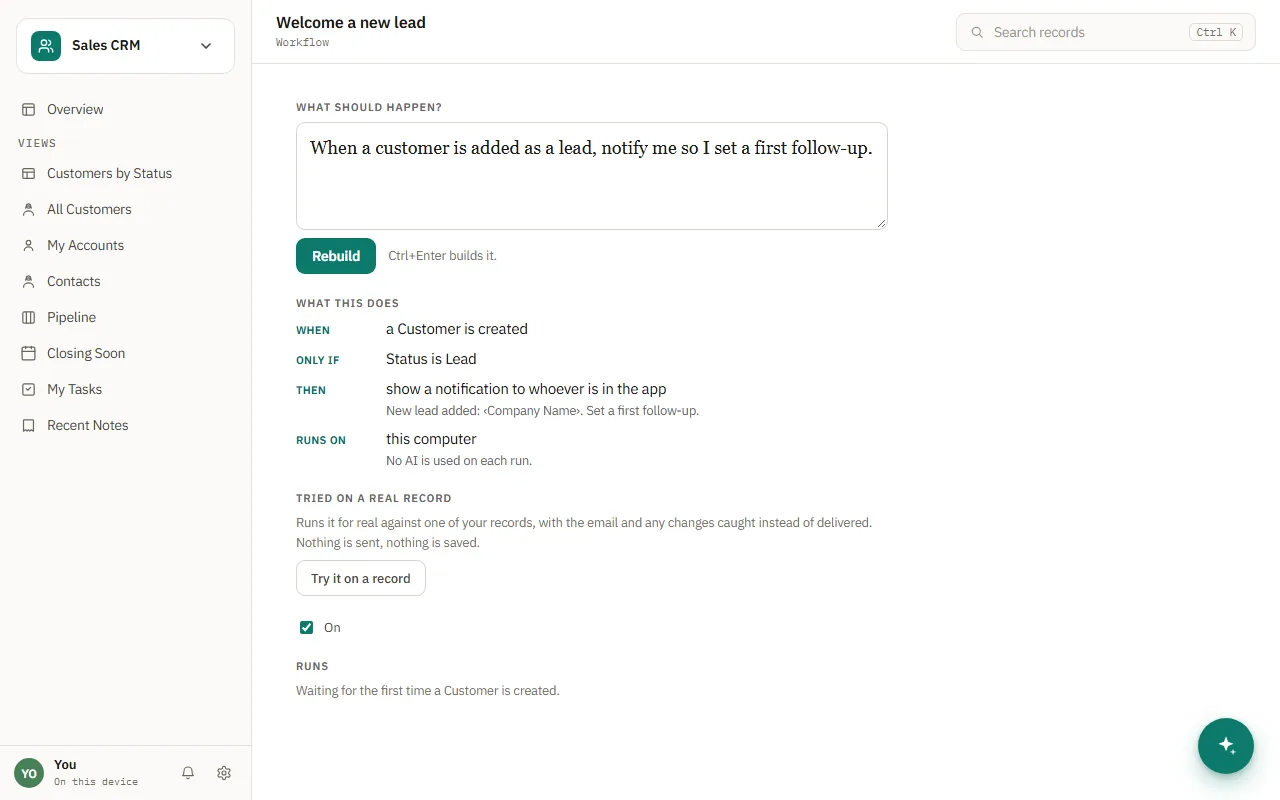
- The sentence. To change the workflow, change the sentence and press Rebuild.
- Rebuild turns the sentence into steps again.
- What this does, read back from the real steps: when it runs, only if, then what.
- Try it on a record. A practice run: nothing is sent and nothing is saved.
- On: untick to pause it.
- Runs: every time it ran, and what happened.
The read-back is made from the steps themselves, not from the AI's words. If it says the wrong thing, the workflow would do the wrong thing. Fix the sentence and rebuild.
When can a workflow run?
- When a record is added, changed or deleted. "When a job is added…"
- When a field changes. "When the status changes to Done…" It can run only the first time a record matches, so it doesn't repeat on every edit.
- When a file is attached.
- On a schedule. Every day, week, month or quarter, at a time you choose. "Every Monday at 8am…"
- When someone presses a button. The button appears on the record page.
What can it do?
- Send an email, to a member, a list, or the address in the record. It can attach the record as a PDF.
- Notify someone in the app. It shows in their Notifications.
- Add a record, or change one. "Create a follow-up task due in 7 days."
- Find records and use them. "Add up the order's lines." "Count the overdue jobs."
- Work things out: add, subtract, multiply, round, days between two dates. This is how you get totals and "days overdue" without formulas.
- Make a PDF of the record and attach it.
- Ask AI to read the record and decide something.
- Send the details to another system (a webhook).
- Do it for each of a set of records: "for each overdue task, email its owner".
Any step can have its own only if: "…and only if the priority is High".
Try it before you turn it on
Press Try it on a record and pick one. The workflow runs for real against that record, but the email and any changes are caught instead of delivered. You see exactly what it would have sent and changed. Nothing is sent, nothing is saved, and no AI is paid for.
See what it did
Under Runs you see each run: when, on which record, and what happened, including any step that was skipped and why. Run now runs it straight away.
Where workflows run
Workflows that send email, make PDFs, call another system or use AI run on our server, so they work even when every computer is off. An app that lives only on one computer can't run those steps; it says so when you build the workflow.
Start with the trigger: "When…", "Every Monday…", "When I press the button…". Then say what should happen. One workflow per job is easier to read than one that does everything.
Moving off Access, FileMaker or a big spreadsheet? Tell us what it does and we will build a working version for you. No fee and no card.