Who sees what
You can decide who sees which records, and who can edit them. The rule is checked every time, on every device, so it can't be dodged.
Set rules on a collection
Open the form builder for the collection and press the Access tab.
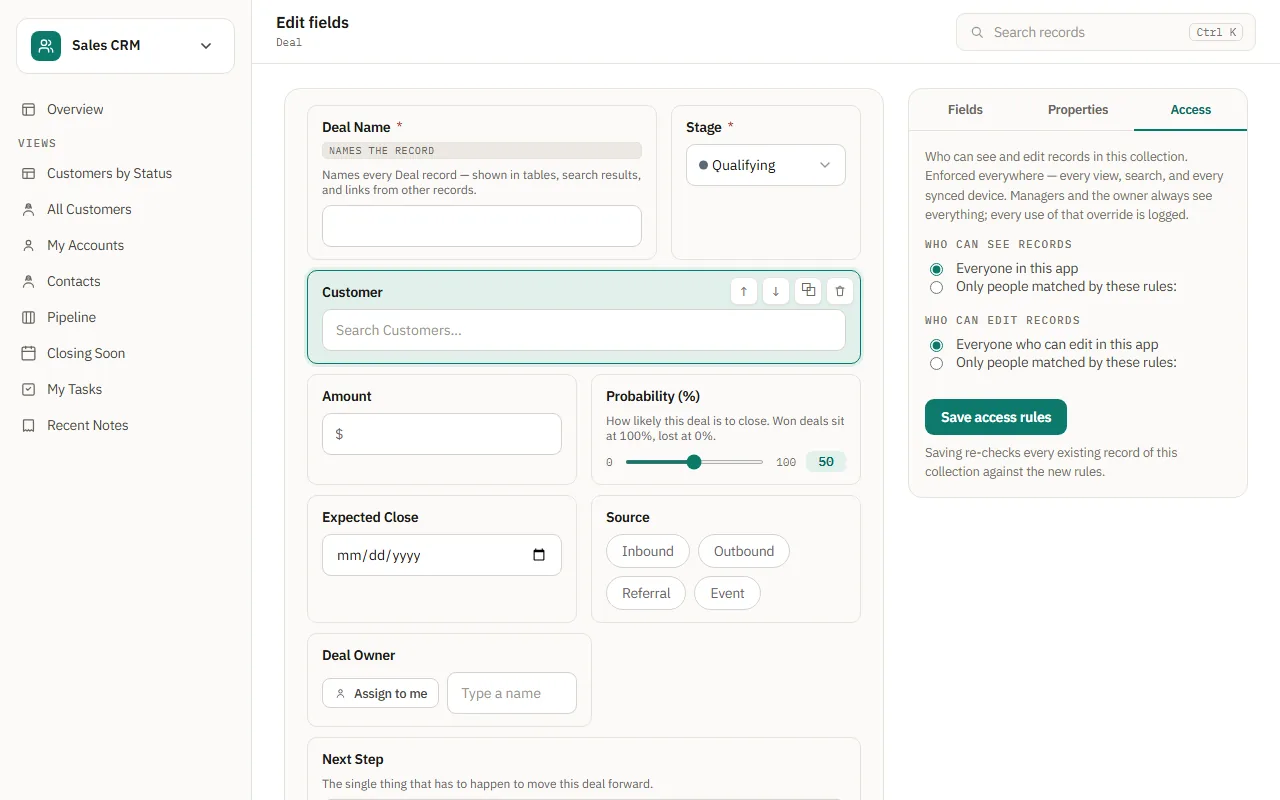
- Access tab of the form builder.
- Who can see records: everyone, or only people your rules match.
- Who can edit records: the same choice, for editing.
- Save access rules. Every existing record is checked again.
- Who can see records: everyone in this app, or only people matched by your rules.
- Who can edit records: everyone who can edit in this app, or only people matched by your rules.
A rule names people: the person in a Person or People field on the record ("the technician on the job"), a group, a role, an access level, or someone by name. A rule can apply always, or only when a Dropdown, Checkboxes or Yes / No field has a certain value ("when Status is Draft").
Press Save access rules. Existing records are updated to match.
Examples
- Each technician sees only their own jobs: who can see, the person in the Technician field.
- Only managers see pay: put pay in its own collection, and let only managers see it.
- Drafts are private until published: when Status is Draft, only the person in Author.
Or ask the assistant: "each technician should only see their own jobs".
Managers and the owner always see everything. Every time they use that, it is logged.
Check who can see a record
A record with a rule on it shows a Restricted badge. Press it to see who can open it, and to check any one person.
Hiding one field
Rules work on whole records. Anyone who can open a record sees every field on it. To keep something private, put it in its own collection with its own rule, linked to the main record. More about who sees what.
Moving off Access, FileMaker or a big spreadsheet? Tell us what it does and we will build a working version for you. No fee and no card.