Views
A view is a way of looking at one collection. The records stay the same; only the look changes. Make as many as you like.
Six kinds of view
Table
Rows and columns, like a spreadsheet. Best for scanning many records, sorting, and adding things up.
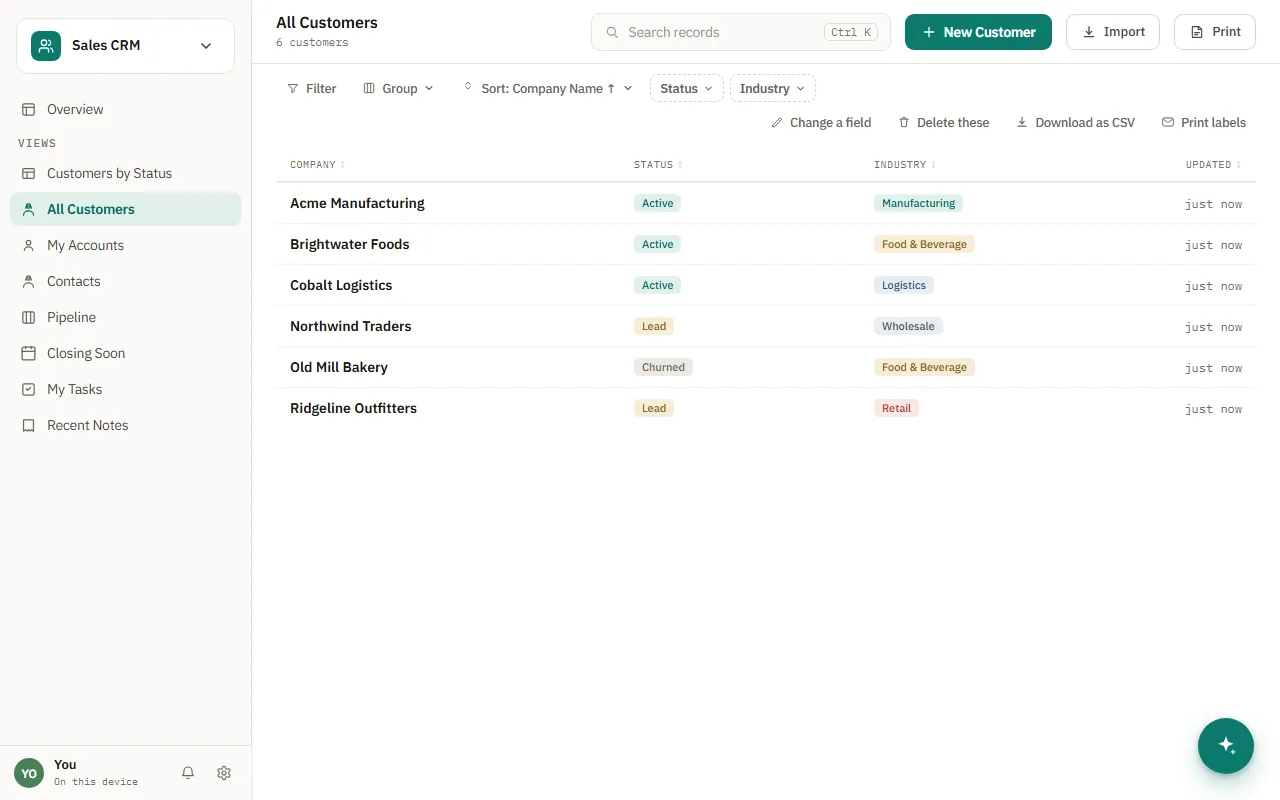
- Filter, Group, Sort just for you.
- Click a column header to sort by it.
- Click a row to open the record.
- Change a field, Delete these, Download as CSV, Print labels: act on every record shown.
- New Customer and Import.
Number and money columns can show a total row. Click a total to switch it between sum, average, smallest and largest.
Cards
One card per record, with the fields you pick. Best for people and places, where a few details matter more than many columns.
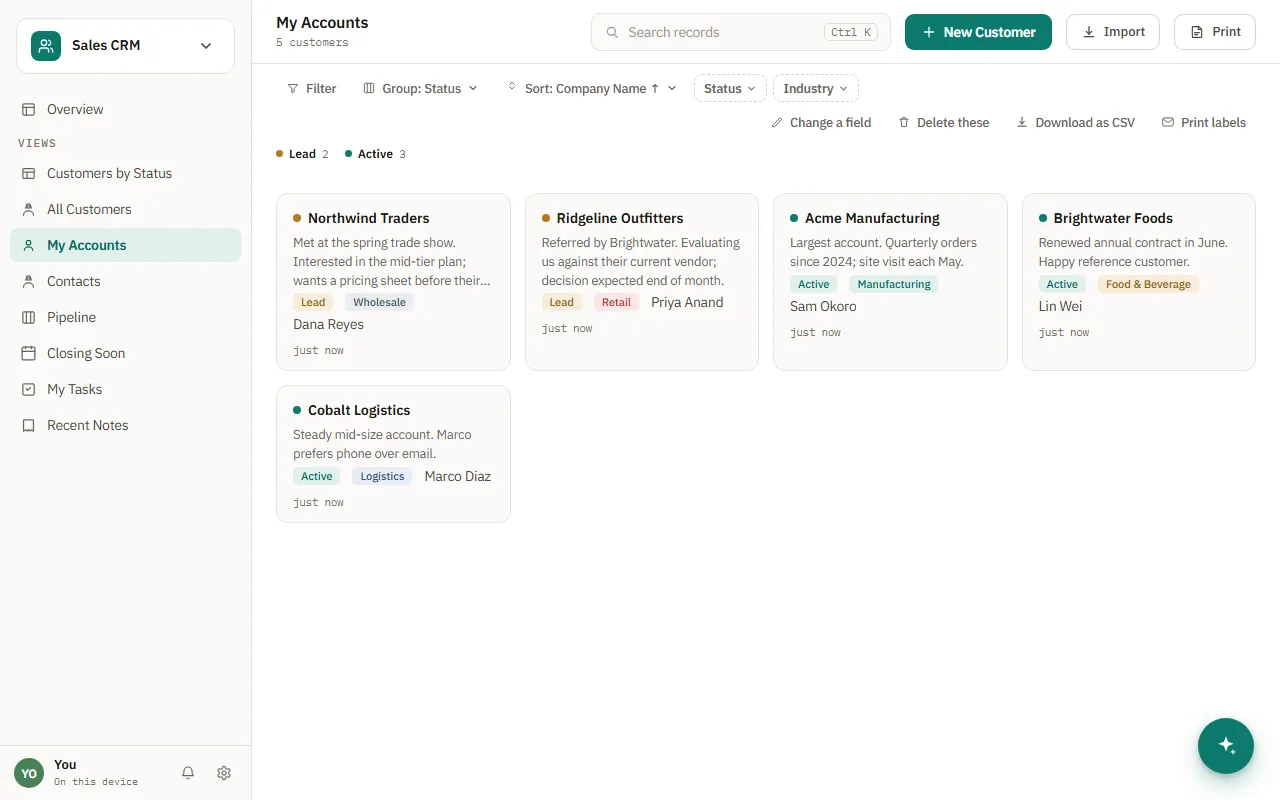
- Groups, with how many in each.
- A card: the fields you picked for this view.
Board
One column per choice of a Dropdown, like Stage or Status. Drag a card from one column to the next to change it. Best for anything that moves through steps: deals, jobs, orders.
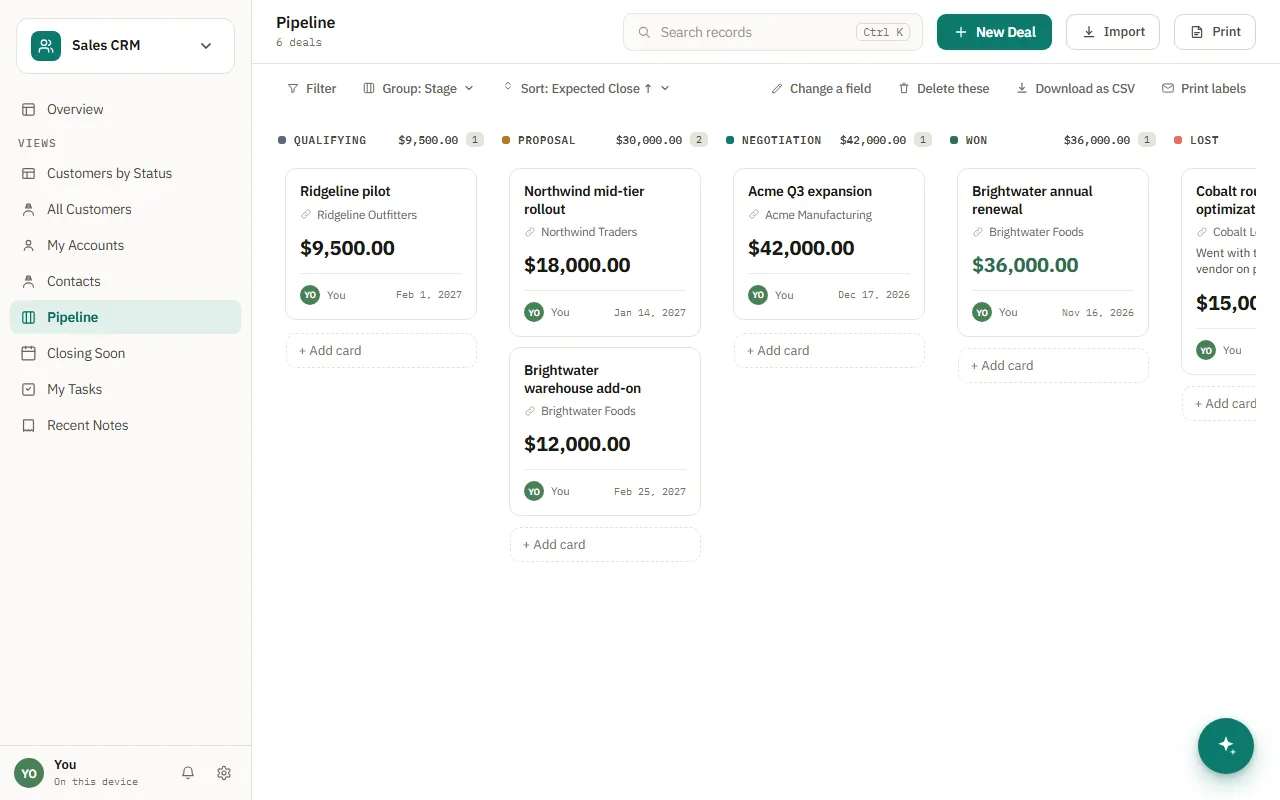
- A column for each choice, with its total and count.
- A card. Drag it to another column to change its stage.
- Add card adds a record straight into this column.
Calendar
Records on their date. Switch between the month and a list; when the dates have times, there are week and day views too. Drag a record to a new day to change its date. Click an empty day to add a record on it. Best for bookings, due dates and shifts.
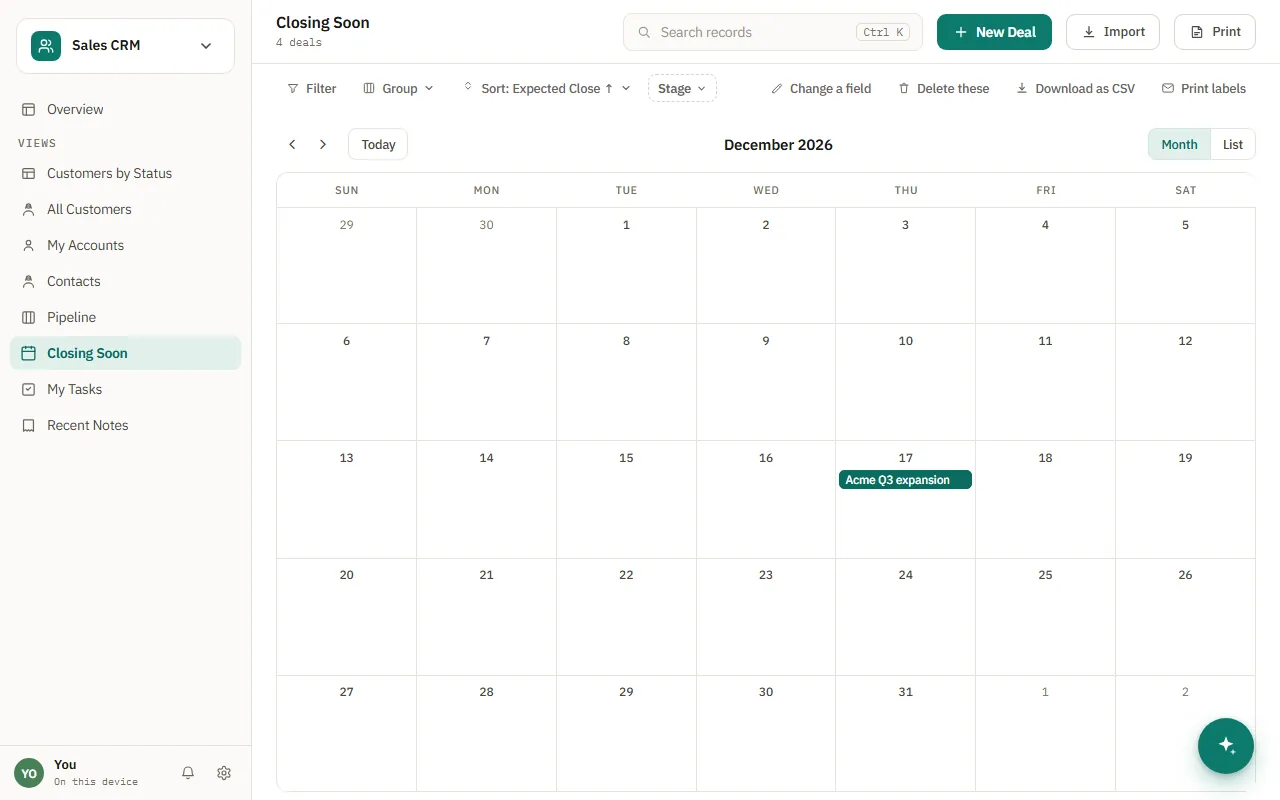
- Back and forward a month, or jump to Today.
- Switch between the calendar and a list.
- A record on its date. Drag it to another day to change the date.
Timeline
Records in date order, along a line. Best for seeing what is coming up, and what overlaps.
Map
Records as pins, from their Address field. Best for jobs, sites and deliveries. Pins appear a moment after an address is added, about one a second.
Make a view
- Open Design. Under Views, press New view.
- Give it a name, pick the collection, and pick how to show it.
- Press Configure to set it up.
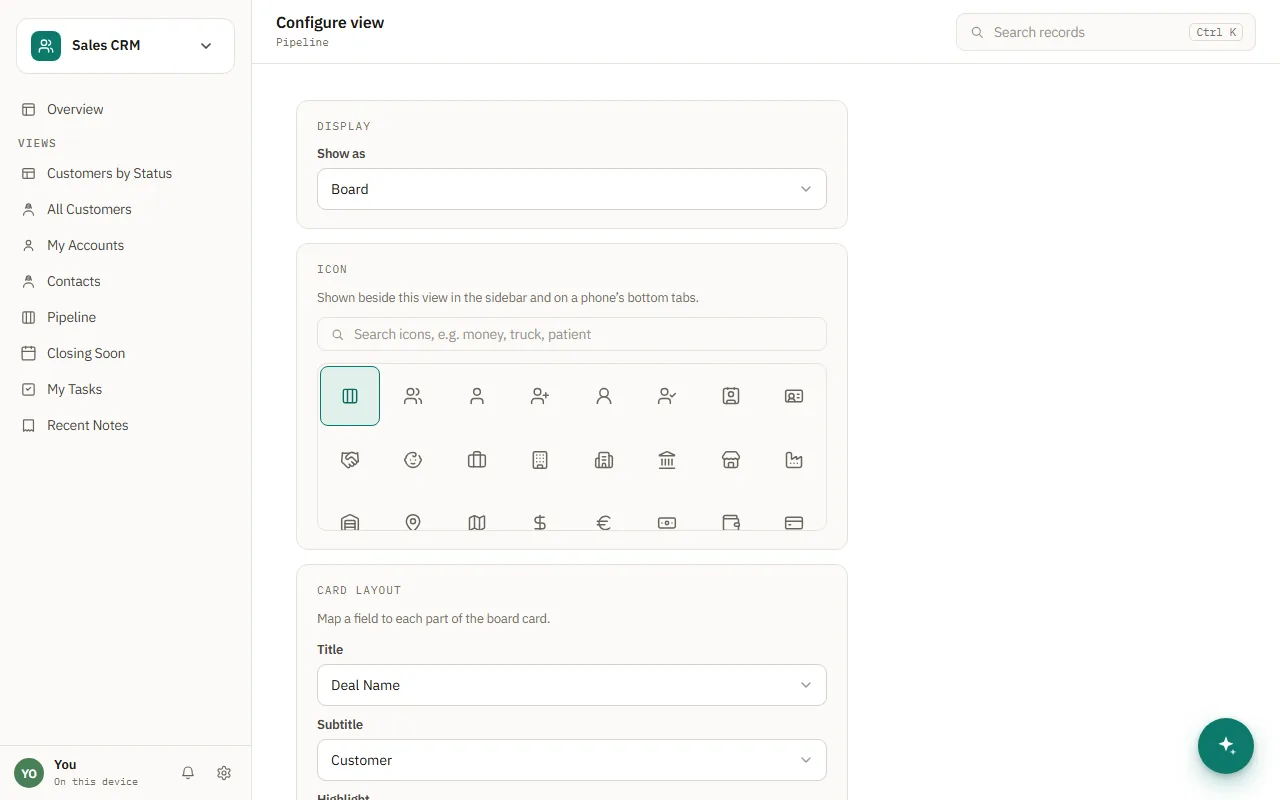
- Show as: table, cards, board, calendar, timeline or map.
- Icon for the sidebar.
- Card layout: which field goes where on each card.
In Configure you set:
- Show as: table, cards, board, calendar, timeline or map. You can switch later.
- Icon: shown beside the view in the sidebar.
- Card layout (boards): which field is the title, the subtitle, the big highlighted value, and what goes at the bottom.
- Group by and Color by: a board's columns come from Group by.
- Sort by: one field, up or down, and whether empty ones come first.
- Filter: which records belong in this view. "Stage is not Won or Lost." "Owner is me." Match all of the conditions, or any.
- Columns (tables) or On each card: which fields show, in what order.
Changes save as you make them. To order the views in the sidebar or rename them, use Edit navigation on the Design page.
Filter, group and sort for yourself
Every view has Filter, Group and Sort buttons along the top. What you set there is yours. It doesn't change the view for anyone else, and it is remembered for you.
- Filters can test a field for: is, is not, is any of, contains, bigger or smaller, is empty or is filled.
- Date filters have ready-made windows: today, overdue, the last or next 7 or 30 days, this week, this month, this year.
- Right-click a cell to Show only that value, or Hide it.
- The link in your address bar keeps your filter. Bookmark it, or send it to a teammate.
Change many records at once
Next to Filter you'll find tools that act on every record the view is showing:
- Change a field: give them all the same value, or number them 1, 2, 3. It can be undone.
- Delete these: move them all to the Trash.
- Download as CSV: every matching record, not only the ones on screen.
- Print labels: address labels, Avery 5160 (Letter) or L7160 (A4).
Filter first, then use these. "Status is Lead" then Change a field moves every lead along in one go.
Add records from a view
Press New at the top. Or paste rows copied from Excel or Google Sheets straight into a view. Or press Import to bring in a file.
Moving off Access, FileMaker or a big spreadsheet? Tell us what it does and we will build a working version for you. No fee and no card.