Make your first app
There are four ways to start an app. Pick the one closest to what you have today.
On the home screen, press New app. You get four choices:
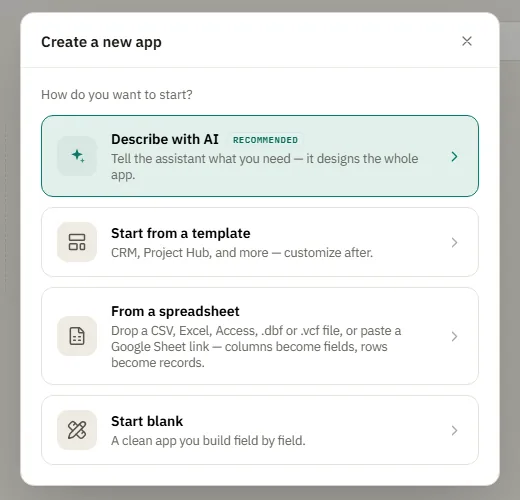
- Describe with AI: say what you need, and the assistant designs the app.
- Start from a template: a ready-made app with sample records.
- From a spreadsheet: your file becomes the app.
- Start blank: build every field yourself.
1. Describe it with AI
Write a sentence or two about what you keep track of. For example: "Jobs for my plumbing business. Each job has a customer, an address, a date, the parts used and whether it's paid." Press Generate app.
The assistant suggests the collections, fields and views. You see the plan first. Nothing is made until you press Apply. If something is wrong, press Adjust and say what to change.
Say what each record holds, and how things connect ("each job belongs to one customer"). The more you say, the better the first try.
2. Start from a template
Pick a ready-made app: a CRM, a project hub, a rent tracker, club members, stock on the shelf, and more. Each comes with sample records so you can see how it works. Change anything afterwards.
3. From a spreadsheet
Drop in a CSV or Excel file, an Access database, a dBase or FoxPro .dbf, or a Google Sheet link. Your first row becomes the field names, and the right field types are picked for you. See Bring in a spreadsheet.
4. Start blank
An empty app. Use this if you want to build every field yourself in the form builder.
Then what?
- Open a view and add a record or two. Does the form ask for the right things?
- If not, fix the fields. Ask the assistant, or open Design.
- Make the views your team needs.
- Invite your team.
Moving off Access, FileMaker or a big spreadsheet? Tell us what it does and we will build a working version for you. No fee and no card.