Working with records
How to add, edit, find and print records.
Add a record
Open a view and press New at the top (it says the collection's name: New Deal, New Job). Fill in the form and press Save.
Shortcuts: Ctrl+Enter saves. Ctrl+Shift+Enter saves and starts the next one, for typing in a stack of paper.
Edit a record
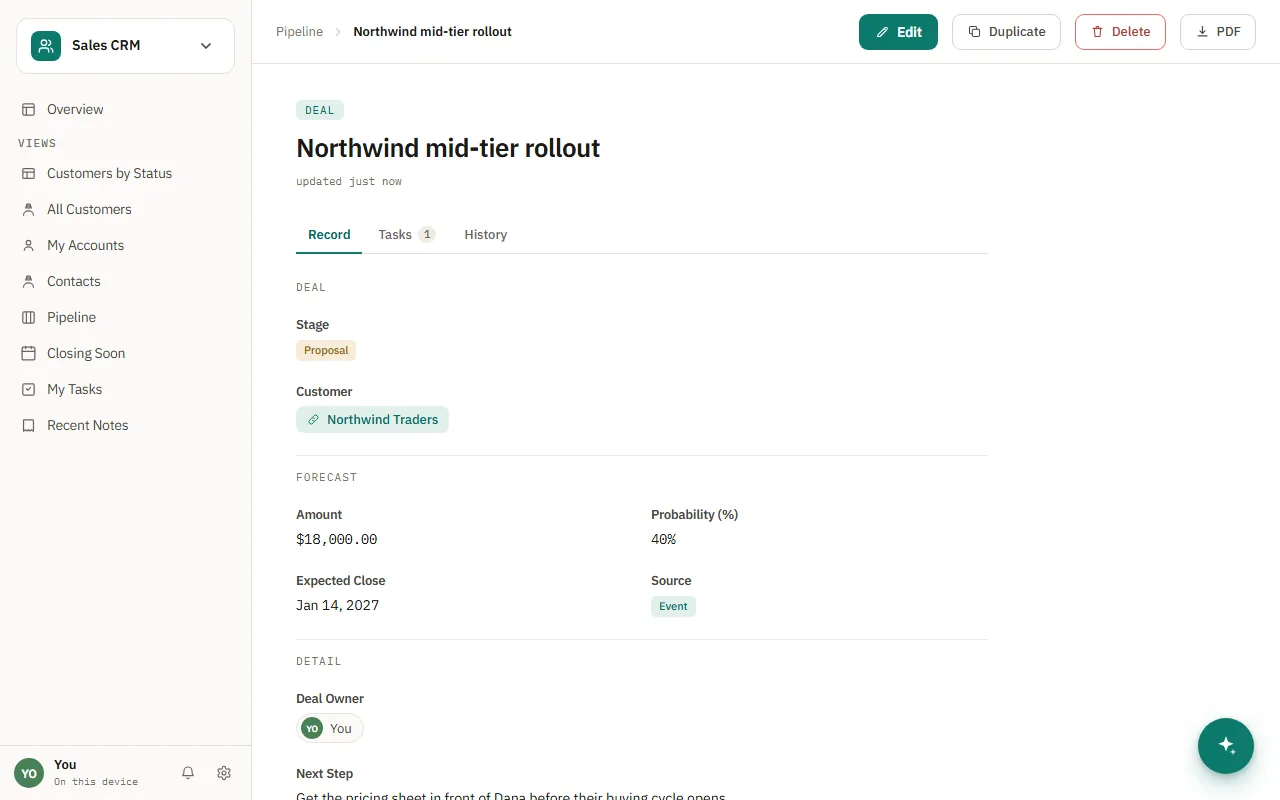
- The record's name, then its fields.
- Tabs: the record, its related records, and its history.
- A link: press it to open the customer.
- Edit the record.
- Duplicate it, or Delete it to the Trash.
- PDF saves it as a PDF.
Open the record and press Edit (or press e, or double-click a field). Make your changes and press Save. Records don't save as you type, so a half-finished change never reaches anyone else. If you leave with changes, you are asked whether to keep them.
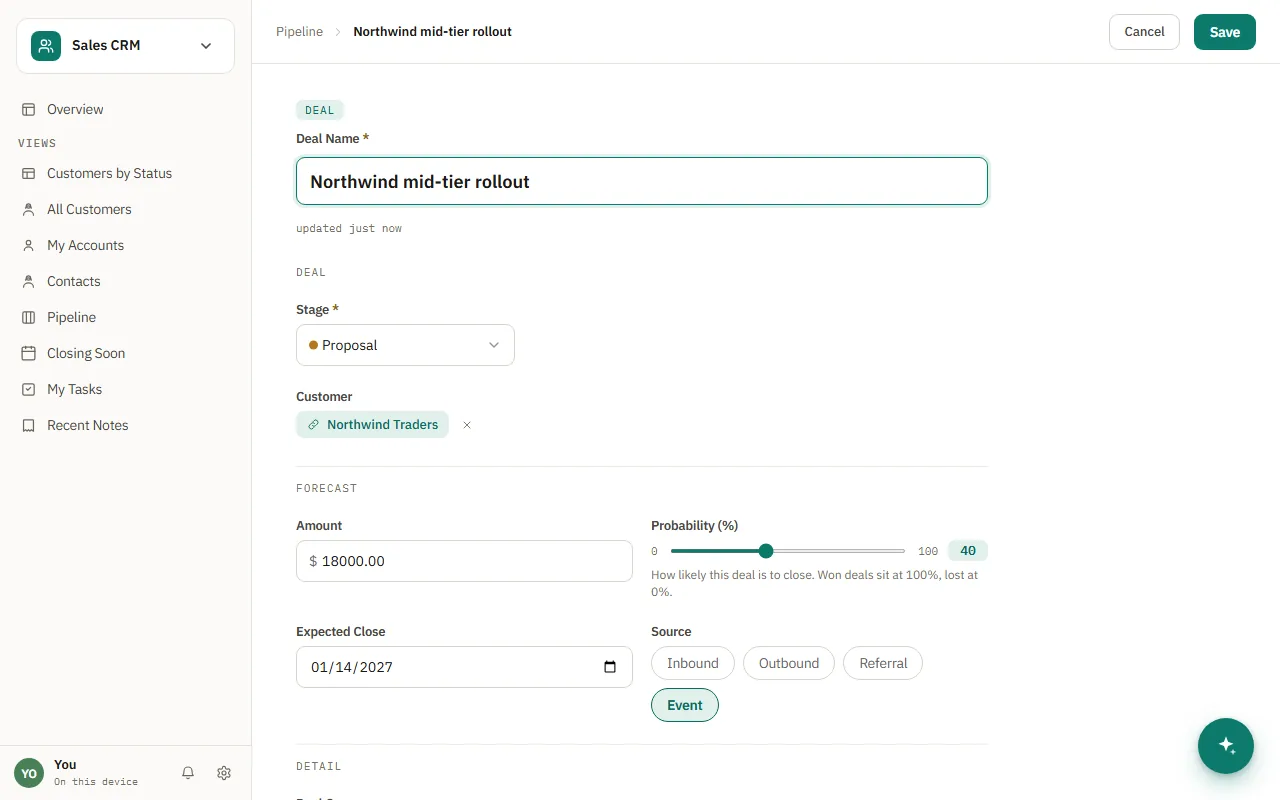
- A required field (marked *). It must be filled in to save.
- Cancel throws your changes away.
- Save keeps them. Ctrl+Enter does the same.
Copy a record
Duplicate (Ctrl+D) starts a new record filled in like this one. Change what's different and save.
Find a record
Use the search box at the top, or press Ctrl+K from anywhere. It looks through record names and text fields across the whole app. Narrow it to one collection with the chips under the box.
Print or save as PDF
- PDF on a record saves that record as a PDF, with its fields in your form's order and empty ones left out.
- Print on a view prints the list as you see it, filtered and sorted.
- Print labels prints address labels for the records shown.
When two people edit the same record
If someone else saved the record while you were editing, you are told, and nothing is lost. Press Review and resolve. For each field, keep yours, keep theirs, or combine them.
Moving off Access, FileMaker or a big spreadsheet? Tell us what it does and we will build a working version for you. No fee and no card.