The form builder
The form builder is where you decide what each record holds. You drag fields in, set them up, and see the form exactly as people will fill it in.
Open it
Open the app menu (top left) and press Design. Under Collections, press Edit fields next to the collection you want.
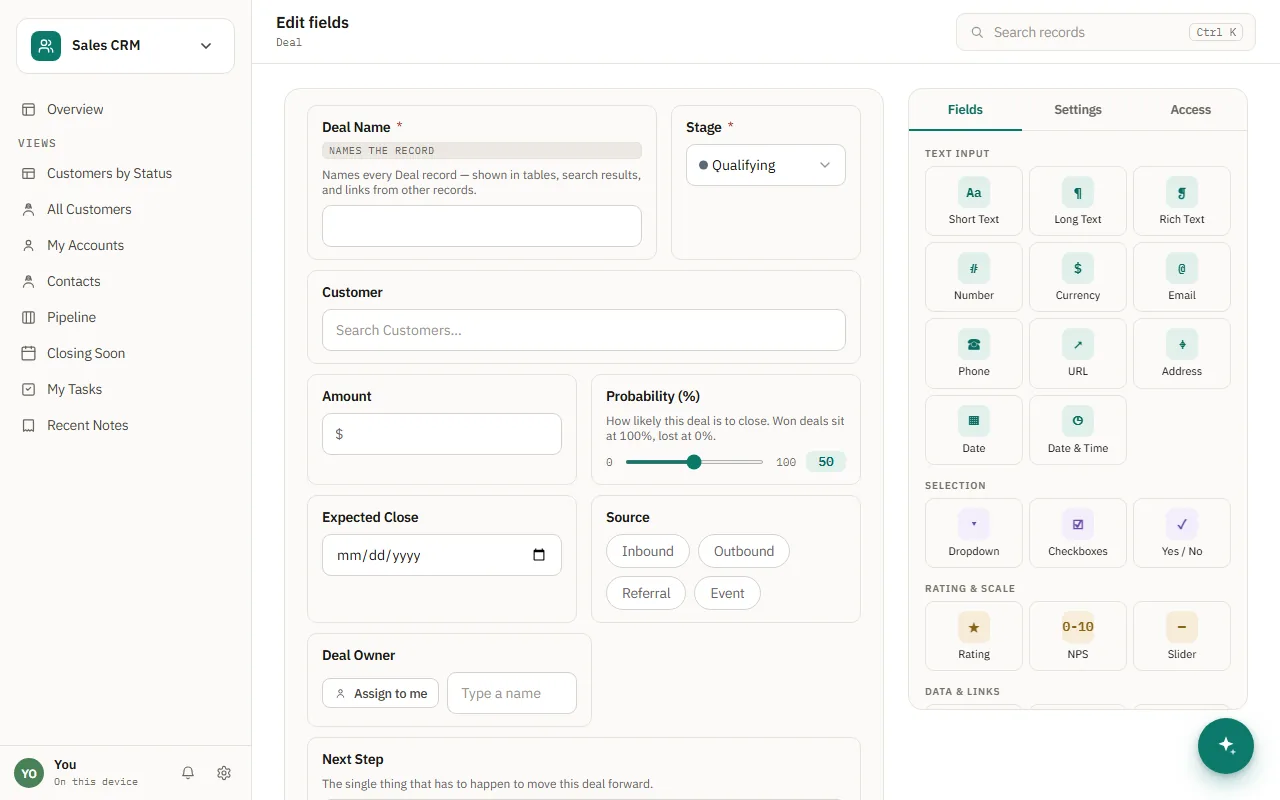
- The form, exactly as people will see it. Click any field to set it up.
- Names the record. This field is the record's name in lists, search and links.
- Fields: every type of field you can add. Click one, or drag it onto the form.
- Settings: settings for the whole collection, like the order of the tabs on a record.
- Access: who can see and edit these records.
- Ask the assistant to add or change fields for you instead.
Add a field
- On the Fields tab, find the type you want. There are 25 types in five groups. Each one is explained here.
- Click it to add it to the end of the form, or drag it to the exact spot.
- Its settings open on the right. Give it a label.
There is no Save button. Every change saves by itself. You'll see Saved at the bottom of the settings.
Set up a field
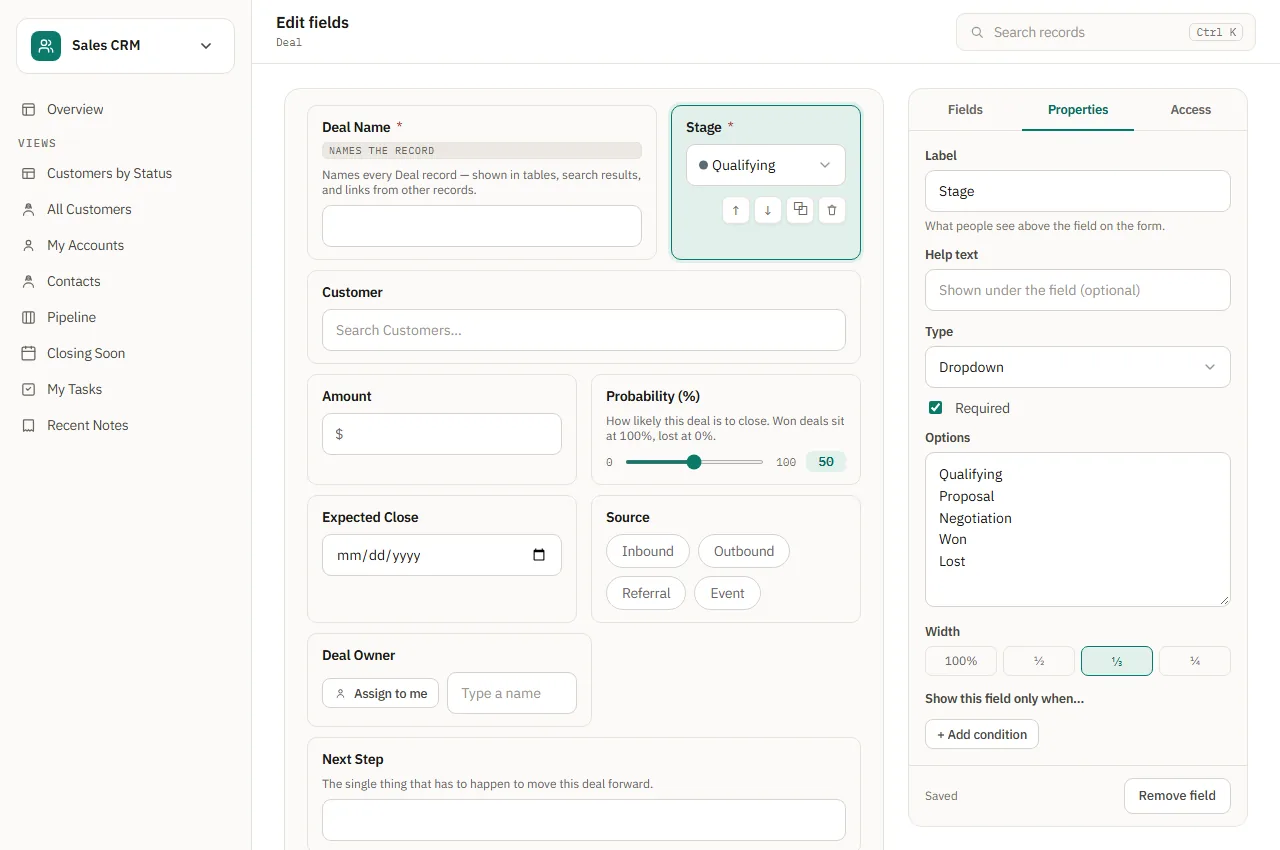
- The field you picked, outlined. Arrows move it, the next button makes a copy, the bin removes it.
- Label: the name people see above the field.
- Help text: a hint shown under the label.
- Type: change a field to another type.
- Required: the record can't be saved without it.
- Options: the choices, one per line.
- Width: how much of the row the field takes.
- Show this field only when…: hide it until another answer makes it matter.
Every field has these settings:
- Label: what people see. Keep it short: "Due date", not "Please enter the due date".
- Help text: one line that explains what goes in. Use it when people might guess wrong.
- Type: you can change it later. Records you already have keep their values.
- Required: the record can't be saved while this is empty. Old records that were saved before you made it required are not blocked.
- Width: 100%, ½, ⅓ or ¼ of the row. Fields that fit share a row. Put short fields like dates and phone numbers side by side.
- Show this field only when…: a field can wait until it matters. For example, show "Why did we lose it?" only when Stage is Lost. You can test for is, is not, contains, bigger or smaller, is filled or is empty, and combine several tests with "All of" or "Any of". A required field that is hidden is not required.
Some types have more settings, like the choices of a Dropdown or the currency of a Currency field. They are listed with each type in Field types.
Arrange the form
- Move a field with its arrows, or drag it.
- Put two fields side by side by giving each a width of ½ (or drag one next to the other).
- Copy a field with its copy button. Useful for "Phone (work)" and "Phone (mobile)".
- Remove a field with its bin button. Its values stay in each record's history.
The name of each record
One field names each record. It is marked names the record. That name is what you see in lists, in search and in links from other records. Pick something people recognise: a company name, a job number, a person's name.
To change it, go to Design, press ⋯ next to the collection, then Collection settings…. Pick the Title field. You can add a second field after it with Followed by, so First name and Last name become "Ann Smith".
What kind of collection is it?
In Collection settings…, Shown as tells the app what the records are, so it can show them in the most useful way:
- Plain list: the usual. Most collections are this.
- Checklist (tasks): shown with tick boxes. You say which field marks it done.
- Message thread and Comment thread: shown like a chat on the record they belong to. You say which field holds the text and who wrote it.
- Files, Events and Notes: shown in the way that suits them.
- Line items: rows on an order or invoice, with a total underneath.
So "comments on a job" is a Comment thread collection with a link to Job. Each comment is its own record, with its own history.
Tabs on a record page
When a record has related records (a customer's deals, a job's notes), each kind gets a tab on the record page. With no field picked, the Settings tab lists them as Record page tabs. Drag them into the order you want.
Or ask the assistant
Anything you can do here, you can ask for: "Add a Paid field to Jobs, yes or no", "Make Phone and Email sit side by side". You see the change first, then press Apply. See The AI assistant.
Formula fields are not part of Bionic Forms. To work something out, like a line total or days overdue, use a workflow. It writes the answer into a normal field, so you can sort, filter and search on it.
Moving off Access, FileMaker or a big spreadsheet? Tell us what it does and we will build a working version for you. No fee and no card.