Every field type
There are 25 types of field. Picking the right one matters: it decides what people can type, how the value looks, and what you can sort, filter, count and chart later.
The types are grouped the same way as on the Fields tab of the form builder.
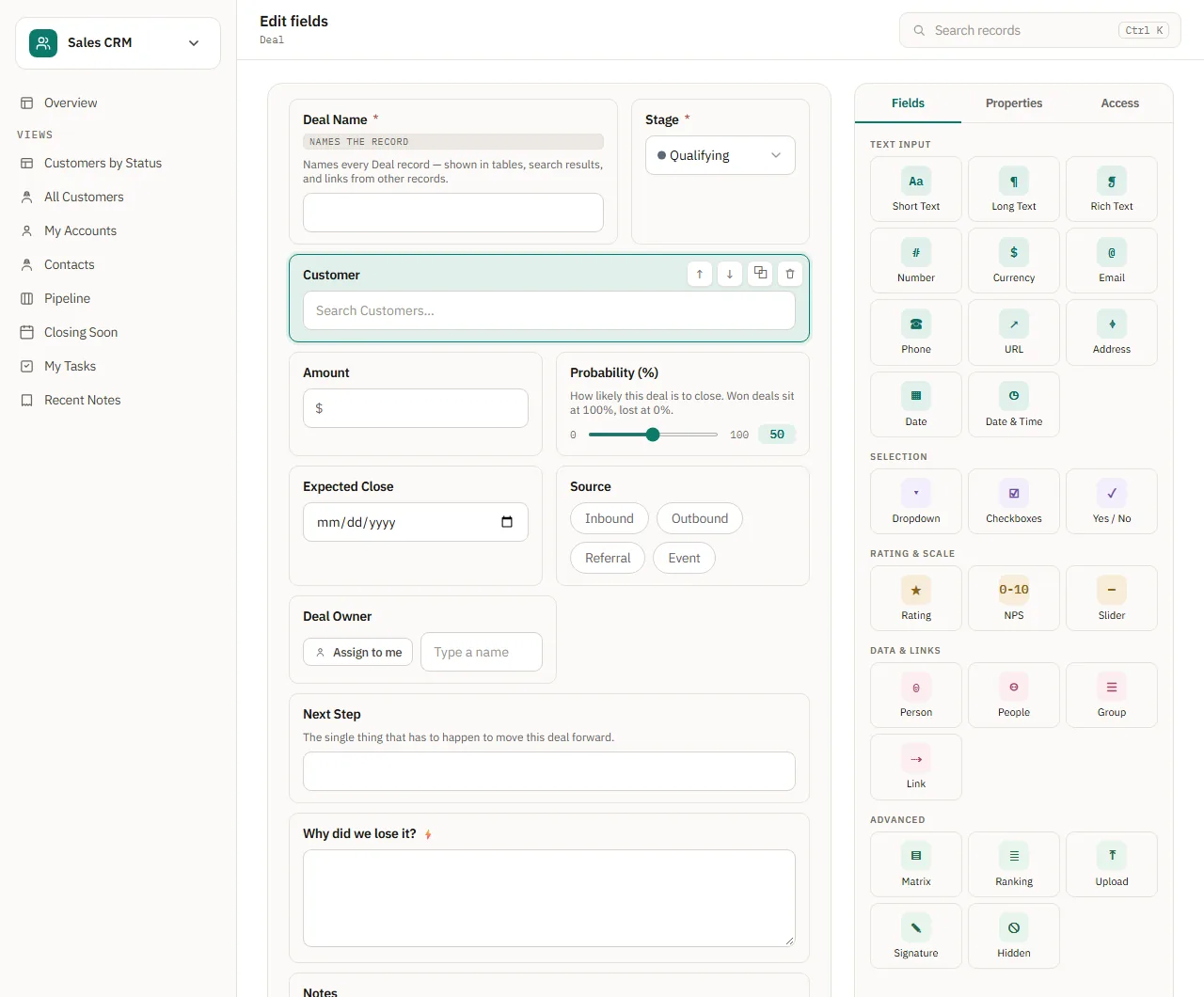
- Text input: text, numbers, money, contact details, dates.
- Selection: pick from a list, or tick yes or no.
- Rating and scale: stars, 0 to 10, a slider.
- Data and links: people, groups, and links to other records.
- Advanced: grids, rankings, files, signatures, hidden values.
Text input
Short Text
One line of text.
Good for: names, job numbers, part codes, anything short.
Settings: Must look like: make every value follow a pattern. In the pattern, # is any number and ? is any letter. INV-#### accepts INV-0042 and refuses INV-42A.
Know this: The usual choice for the field that names the record.
Long Text
Several lines of plain text.
Good for: notes, descriptions, the address for a delivery note, what the customer said.
Rich Text
Text with bold, lists and links.
Good for: instructions and write-ups that need structure.
Know this: Use Long Text unless you need the formatting. Plain text is easier to search and export.
Number
A number.
Good for: quantities, hours, scores, readings.
Settings: Show as a percentage; Always show two decimals; Allowed range (smallest and largest). A value outside the range is refused when the record is saved.
Know this: Numbers can be added up in table totals, dashboard cards and workflows.
Currency
An amount of money.
Good for: prices, invoice totals, deposits, pay rates.
Settings: Currency: dollar, pound, euro, Swiss franc, yen, yuan, rupee, rand, Swedish, Norwegian and Danish krone, złoty, real, peso, naira, shilling. Allowed range.
An email address.
Good for: contacts. Workflows can send email to it.
Know this: Checked when the record is saved: it must look like an email address.
Phone
A phone number.
Good for: contacts. On a phone it can be tapped to call.
Know this: Checked when the record is saved.
URL
A web link.
Good for: a website, a shared folder, a listing.
Know this: Must be a real link when saved.
Address
A street address.
Good for: customers, sites, deliveries. Any collection with an address can be shown on a map view.
Know this: Filters can look at parts of it: city, state or region, ZIP or postal code, country.
Date
A day, with no time.
Good for: due dates, birthdays, start dates, renewal dates.
Settings: Start with today's date fills it in on a new record.
Know this: Dates put records on a calendar or timeline, and let you filter by "overdue" or "next 7 days".
Date & Time
A day and a time.
Good for: appointments, shifts, bookings.
Settings: Start with the current date and time.
Selection
Dropdown
Pick one choice from a list.
Good for: status, stage, priority, category. Anything you'll group, count or colour by.
Settings: Options, one per line.
Know this: With 4 options or fewer it shows as buttons, so it takes one tap. With more, it is a dropdown. A Dropdown makes the columns of a board and the slices of a chart.
Checkboxes
Tick several choices from a list.
Good for: tags, skills, which services a customer uses.
Settings: Options, one per line.
Know this: With 5 options or fewer they show as tick boxes. With more, you type to find and add them.
Yes / No
A single tick.
Good for: paid, done, signed, active.
Know this: Good for filters ("not paid") and for workflows ("when Paid is ticked…").
Rating and scale
Rating
Stars.
Good for: how a job went, a supplier score, quality checks.
Settings: Number of stars, 2 to 10 (5 to start).
NPS
A 0 to 10 score.
Good for: "How likely are you to recommend us?"
Slider
A number picked by sliding.
Good for: percentages and rough amounts, like how likely a deal is to close.
Settings: Scale: smallest, largest and step (0 to 100 by 1, to start).
Data and links
Person
One member of this app.
Good for: who owns a deal, who is assigned a job.
Settings: Start with the person who adds it.
Know this: People fields can drive access rules: "each person sees only the jobs assigned to them". Workflows can email or notify the person in it.
People
Several members of this app.
Good for: a job crew, everyone who should be told.
Group
A group of members, not one person.
Good for: a team that owns something: "Night shift", "Sales".
Know this: Groups are set up in Settings. See Share with your team.
Link
Points at one record in another collection.
Good for: an order's customer, a job's site, an invoice's job.
Settings: Links to: which collection, or several. Show on the linked record’s page, and what that tab is Called.
Know this: A link holds one record. The other side fills itself in: link an order to a customer and the customer's page gets an Orders tab. See Links between records.
Advanced
Matrix
A grid: each row rated across the same columns.
Good for: inspections (each item: pass, fail, n/a), surveys.
Settings: Rows and Columns.
Ranking
Items dragged into an order.
Good for: "Put these in order of importance."
Settings: Items to rank.
Upload
Files attached to the record.
Good for: photos, signed sheets, quotes, drawings.
Know this: The files sit in the record's Attachments section, with versions. See Files and PDFs.
Signature
A signature drawn with a finger or a mouse.
Good for: sign-offs, delivery notes, consent.
Hidden
A fixed value stored on every record and never shown on the form.
Good for: marking where records came from, like "web form".
Settings: Default value.
Picking the right type
- Will you group or count by it? Use a Dropdown, not Short Text. "Pending" and "pending " look the same to you and different to a computer.
- Is it a thing you keep a list of? (customers, products, sites) Make it its own collection and use a Link. Then a change to the customer shows everywhere.
- Is it money? Use Currency, not Number, so it is shown and added up as money.
- Is it a person on your team? Use Person, not text. Then you can filter by "me", send them email, and limit what they see.
- Is it worked out from other fields? Don't make people type it. Use a workflow to fill it in.
Not here today: formula fields, auto-numbers and GPS location fields. To number records, use Change a field on a view (it can number them 1, 2, 3) or a workflow. For places, use an Address field and a map view.
Moving off Access, FileMaker or a big spreadsheet? Tell us what it does and we will build a working version for you. No fee and no card.